
KB5074109 Nvidia FPS Drops: what’s happening and why gamers should care
KB5074109 Nvidia FPS Drops is the phrase many Windows 11 gamers started repeating after a routine security update turned smooth gameplay into stutter, flicker, and lower frame rates. If you installed the January Windows 11 patch and immediately noticed a 10 to 20 FPS hit, worse 1 percent lows, or weird visual artifacts on a GeForce card, you are not alone.
This situation is extra frustrating because KB5074109 is a security update. You should not have to choose between performance and protection. But right now, for a subset of systems, that tradeoff is real. The goal of this guide is simple: help you confirm the cause, fix it safely, and reduce the odds it happens again.
Last verified: 2026-02-15
What is KB5074109 and who is actually affected
KB5074109 is a Windows 11 cumulative security update that rolled out as part of January patching. It is not a niche optional tweak. It lands automatically for many people, which is why it spread fast.
The key point: KB5074109 Nvidia FPS Drops does not appear to hit every NVIDIA user. Reports cluster around certain Windows 11 versions and builds, and many users only see the problem in specific games or rendering paths. That makes it feel random, but the pattern is consistent enough that it became a widely tracked issue.
If you are on Windows 11 with a GeForce GPU and you notice sudden performance regression right after updating, you are the exact audience for this article. If your PC is stable and your games run normally, do not uninstall security updates “just in case.” Use the confirmation steps below first.
How KB5074109 Nvidia FPS Drops shows up in real gameplay
Most people describe KB5074109 Nvidia FPS Drops as more than “a few frames.” The common symptoms fall into a few buckets:
1) Raw FPS loss (often noticeable immediately)
- A clear drop in average FPS compared to the same settings the day before.
- Bigger drops at 1080p and 1440p where you normally expect high FPS headroom.
- The feeling that your GPU suddenly “won’t stretch its legs.”
2) Worse 1 percent lows and micro-stutter
- Your FPS counter might look “okay,” but the game feels choppy.
- Camera panning looks uneven.
- Frame pacing feels off, even in areas that used to be stable.
3) Visual glitches and instability
- Flickering in shadows or lighting.
- Random artifacting that looks like broken post-processing.
- Frame generation behaving oddly (for supported titles and setups).
- Black screens for some users, especially during alt-tab or loading transitions.
4) The “it only happens in some games” trap
This is where players lose time. One game feels fine, another feels broken, and you start blaming drivers, overlays, or the game patch. The timing matters: if the drop started after KB5074109, treat it as suspect even if only one title shows it clearly.
Confirm you are dealing with KB5074109 Nvidia FPS Drops (and not something else)
Before you change anything, take five minutes to confirm the basics. This avoids uninstalling the wrong update or chasing the wrong fix.
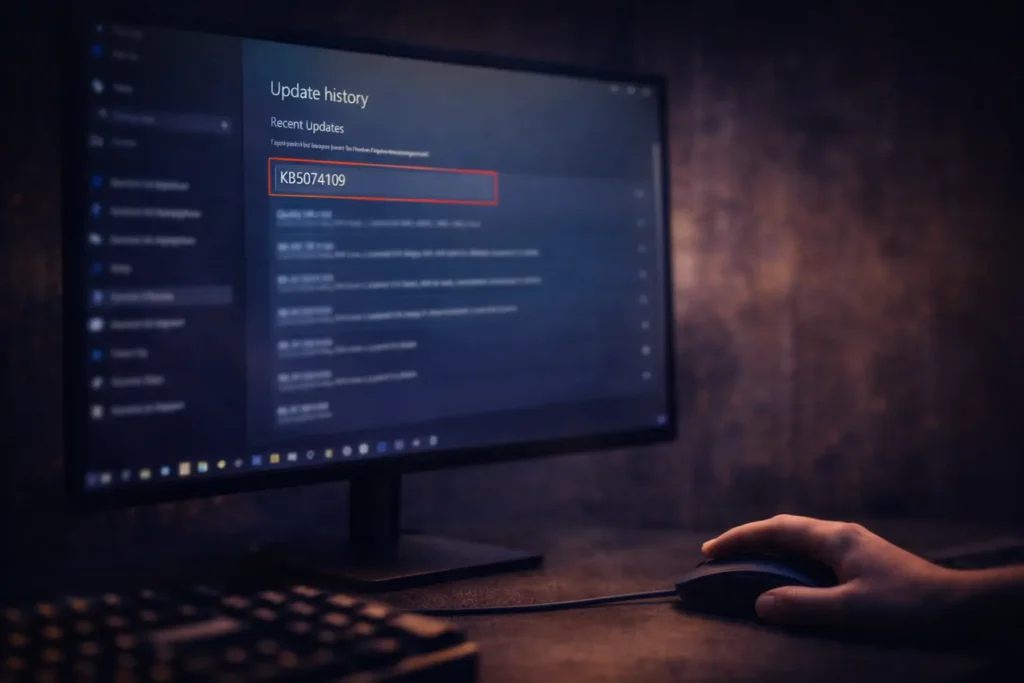
Step A: Check if KB5074109 is installed
- Settings
- Windows Update
- Update history
- Look under “Quality updates” for KB5074109
If you do not see it, you are not dealing with KB5074109 Nvidia FPS Drops. Stop here and troubleshoot the game or driver normally.
Step B: Note your Windows build
- Press Windows key + R
- Type: winver
- Write down Version and OS Build
This is useful if you later need to compare your state before and after rollback.
Step C: Do a quick A/B sanity test
Pick one reproducible scenario:
- A built-in benchmark scene
- A repeatable in-game location
- A known heavy area with consistent settings
Do not change graphics settings yet. You want a clean comparison.
The safest fix path (in order)
You want the highest chance of success with the lowest risk. Here is the order that makes sense.
Fix 1: Create a safety net first (do this even if you are confident)
Before you roll anything back:
- Create a restore point (System Protection) if it is enabled.
- If you are on a laptop or work PC, consider a full backup if you have important data.
This protects you if uninstalling triggers a boot loop or if Windows tries to reapply updates in an odd state.
Fix 2: Install newer Windows fixes first (low risk, sometimes enough)
Microsoft pushed follow-up updates after January’s patch wave caused multiple issues across different areas of Windows. Even if those fixes were not “made for gaming,” they can still affect underlying components.
Go to:
- Settings
- Windows Update
- Check for updates
- Install everything offered, then reboot
If you are lucky, your KB5074109 Nvidia FPS Drops symptoms may reduce after later patches, especially if your system also had related Windows regressions.
Fix 3: Uninstall KB5074109 (the workaround most affected users report works)
If the problem started right after KB5074109 and persists after installing newer updates, this is the most direct path.
Uninstall from Settings:
- Settings
- Windows Update
- Update history
- Uninstall updates
- Select KB5074109
- Uninstall
- Reboot
After reboot, rerun the exact benchmark or scene you used earlier. If performance snaps back, you have confirmed the root cause.
Important: you are removing security fixes. Only do this if you are truly affected.
Fix 4: If Windows won’t let you uninstall (0x800f0905 and similar)
Some users hit uninstall failures. If you see errors during rollback, do not brute force random commands first. Use the cleanest options:
Option A: System Restore
- Restore to a point before KB5074109 installed.
Option B: Use Windows Recovery Environment (WinRE) uninstall
If the PC becomes unstable or you cannot boot normally, WinRE can remove the latest quality update.
Option C: “Fix problems using Windows Update” style repair
On some Windows 11 systems, Microsoft provides a repair option that reinstalls core components while keeping apps and files. This can clear servicing issues, and then you can attempt the uninstall again.
Fix 5: Only if needed – clean reinstall or rollback your NVIDIA driver
If you uninstall KB5074109 and performance returns, do not waste time reinstalling drivers. You already found the cause.
But if you still have instability:
- Perform a clean driver install (NVIDIA installer has a clean option in many cases).
- If a driver update landed around the same time, consider rolling back one version to test.
Keep this step last because it is easy to misattribute the fix.
Related KB5074109 problems you should know about (quick fixes)
Even if your main pain is KB5074109 Nvidia FPS Drops, many users reported other breakage after the January update. If any of these hit you, here is the practical approach.
1) Black screen on boot or at login
- If it started after KB5074109, uninstall the update via WinRE.
- If you can boot sometimes, uninstall from Settings first.
2) UNMOUNTABLE_BOOT_VOLUME or boot failure
- This is not a “tweak a setting” issue. Treat it as a rollback scenario.
- Use WinRE to uninstall the latest quality update if the desktop is unreachable.
3) Remote Desktop sign-in failures
- Microsoft issued an out-of-band update aimed at Remote Desktop sign-in failures after KB5074109.
- If Remote Desktop is critical to you, install the latest emergency patches and retest.
4) Outlook classic POP/PST hangs (especially with cloud-stored PSTs)
- Move PST files out of cloud-synced folders (like OneDrive) if possible.
- Use web Outlook as a temporary workaround.
- Install the latest follow-up Windows fixes aimed at Outlook and cloud app breakage.
5) Sleep mode weirdness on older PCs (S3 sleep)
- If sleep becomes a black screen trap and requires a hard reboot, test removing peripherals that interfere (some users report webcams triggering odd behavior).
- If it started right after KB5074109, rollback remains the cleanest confirmation step.
How to avoid KB5074109 Nvidia FPS Drops in the future
You cannot stop Windows updates forever, and you should not. But you can reduce risk without turning your PC into an unpatched target.
1) Delay updates like a gamer, not like a lab tester
If your system is stable:
- Pause updates for 7 days after Patch Tuesday.
- Let early bug reports surface before you install.
2) Turn restore points into a habit
If System Protection is off, consider enabling it on your OS drive. A restore point before patching turns a nightmare into a 10-minute rollback.
3) Keep one reproducible benchmark scenario ready
When something breaks, you want proof fast:
- Same game
- Same scene
- Same settings
- Same overlay tools off
This makes it obvious whether KB5074109 Nvidia FPS Drops is your real issue or a coincidence.
4) Avoid stacking changes on the same day
Try not to do all of this at once:
- Windows update
- NVIDIA driver update
- New game patch
- BIOS update
Stagger them. It makes root cause obvious.
Our take: what to expect next
KB5074109 Nvidia FPS Drops has all the fingerprints of a bad interaction between a Windows graphics pipeline change and specific NVIDIA configurations. The public guidance so far points to rollback as the quickest workaround for affected users, while Microsoft and NVIDIA investigate.
What we expect:
- A Windows-side fix is the most likely real solution, delivered either as an out-of-band patch or in the next cumulative update.
- NVIDIA may also ship a mitigation in drivers, but if the root cause sits in the OS update, drivers alone might not fully solve it.
- Until a confirmed fix lands, the best strategy is targeted rollback only if you are affected, then pause updates briefly and monitor the next Windows release.
If you are not seeing the problem, do not create it by uninstalling security patches. If you are seeing it, now you have a clean playbook that minimizes risk and wasted time.
For more details, read January 17, 2026 – KB5077744 (Out-of-band) official notes for a full breakdown and expert analysis. Looking for reviews from noobidio.com? Check here
0 Comments
To keep discussions clean, commenting requires a Noobidio account.